DITO SIM Registration Selfie Tips: How to Pass Photo Verification in 2026

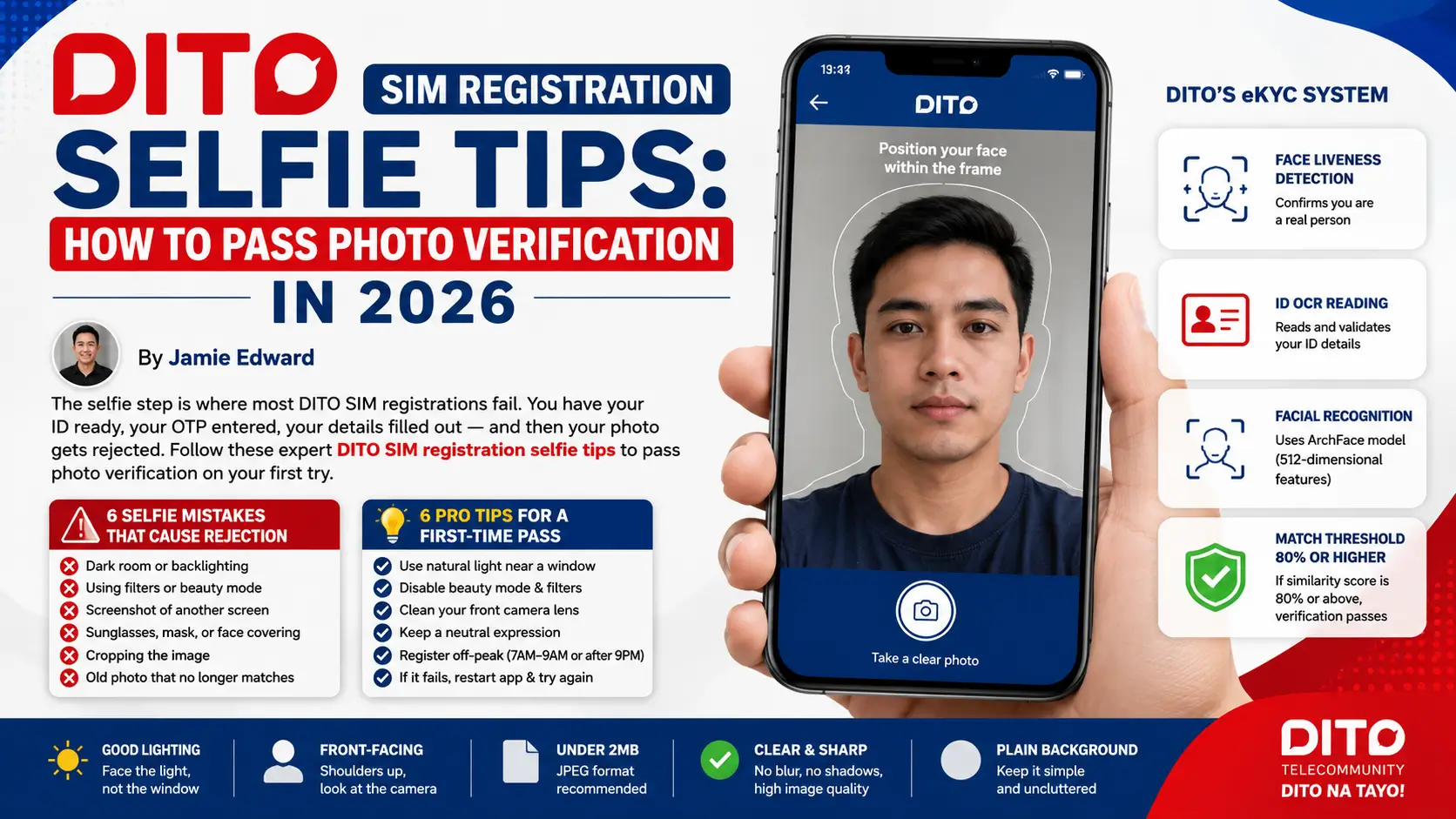
The selfie step is where most DITO SIM registrations fail. You have your ID ready, your OTP entered, your details filled out — and then your photo gets rejected. This guide on DITO SIM registration selfie tips covers everything from what the system actually checks to how to take a photo that passes on the first try. If you follow these DITO SIM registration selfie tips carefully, you can avoid the most common rejection reasons before they happen.
Read Also: How Long Does DITO SIM Registration Take?
What Is DITO Photo Verification and Why Does It Matter?
When you upload your selfie during registration, DITO’s AI-powered eKYC (electronic Know Your Customer) system runs multiple checks on your photo in seconds.
According to DITO Telecommunity’s official announcement, their system includes face liveness detection, live selfie capture, OCR (Optical Character Recognition) for ID reading, and facial recognition using the ArchFace model with 512-dimensional features. The system compares your selfie to the photo on your uploaded ID.
If the similarity score reaches 80% or higher, verification passes. This is exactly why DITO SIM registration selfie tips around lighting and angle are not optional — they directly affect your match score.
Official DITO Selfie Requirements for 2026
Before you take or upload any photo, confirm it meets all of these requirements:
Your face must be fully visible from the shoulders up, front-facing. Eyes must be open and looking directly at the camera. No sunglasses, dark lenses, masks, or full face coverings. No shadows falling across your face. No photo filters, beauty modes, or AI enhancements. File size must be under 2MB. JPEG format is recommended. No screenshots of photos taken on another device. Background should be plain and uncluttered.
How to Take the Perfect Selfie Using the DITO App (Method 1 — Live Capture)
This is the recommended method. The app captures your photo live, which automatically satisfies the face liveness detection requirement. These DITO SIM registration selfie tips apply specifically to live capture:
Find a spot with good natural light. Stand facing a window or light source, not with it behind you. Backlighting is one of the top reasons selfies fail facial matching.
Hold your phone at eye level, about 30 to 40 centimeters from your face. Holding the camera too close distorts your face dimensions and can reduce your AI match score below the 80% threshold.
Make sure your entire face is within the frame guide shown on the app screen. Your ears should be partially visible, with slight space above and below your face.
Keep your expression neutral. A relaxed face matches better with your ID photo than a big smile, since most government IDs use a neutral expression.
Tap capture only when the preview is sharp with no blur. The system cannot recover a blurry image on its end.
How to Upload an Existing Selfie from Your Gallery (Method 2 — Gallery Upload)
Uploading from your gallery is possible but has a higher rejection rate than live capture. Use this method only if you have a recent, high-quality photo.
Step 1: Choose a selfie taken within the last 6 months. An older photo may not match your current appearance closely enough.
Step 2: Check the file size. If the photo is over 2MB, compress it using a free tool like Squoosh (squoosh.app) before uploading.
Step 3: Confirm the format is JPEG. iPhone HEIC files need to be converted first.
Step 4: Do not crop the photo. Upload the full original frame — cropped images can fail the face dimension check.
Step 5: If gallery upload fails, switch to live capture. It is the more reliable path.
Special Cases — Glasses, Hijab, and Beard
Regular prescription glasses are generally accepted as long as there is no heavy glare. If your ID photo shows you without glasses, remove them for the selfie to improve your match score. Hijab is acceptable as long as the full face from forehead to chin remains visible.
If you have grown a significant beard since your ID was issued, use live capture with clean lighting to give the AI the best chance to find matching features.
Read Also: DITO SIM Registration Deadline 2026: Is It Still Open?
App Camera vs Gallery Upload — Comparison
Feature — App Live Capture — Gallery Upload Face liveness check — Passes automatically — May trigger rejection Image quality control — Real-time on-screen guidance — Manual check required Risk of rejection — Lower — Higher Best for — All users — Users with an existing verified photo
Warning Box — 6 Selfie Mistakes That Cause Rejection
- Do not take the selfie in a dark room or with light directly behind your head.
- Do not use beauty mode, portrait mode, or any filter. Do not upload a screenshot of a photo shown on another screen.
- Do not wear sunglasses, tinted glasses, a mask, or a full face covering.
- Do not crop the image — full face framing is required.
- Do not submit a photo that is several years old — your appearance may no longer meet the 80% match threshold.
Pro Tips Box — 6 DITO SIM Registration Selfie Tips for a First-Time Pass
- Take your selfie near a window during daytime for the cleanest natural lighting.
- Disable your phone’s front camera beautification setting before opening the DITO App.
- Clean your front camera lens with a soft cloth before capturing — smudges create blur that lowers your match accuracy. Keep a neutral, relaxed expression similar to how you look in your ID photo.
- Register between 7 AM and 9 AM or after 9 PM when server load is lower.
- If verification fails twice, close the app completely, restart your phone, and try again with a freshly taken selfie.
Why Is My DITO Selfie Being Rejected? 5 Problems and Fixes
Problem 1
Shadow on face: You are standing with a light source behind you. Fix: Move so the light faces you directly.
Problem 2
Image too large: File exceeds 2MB. Fix: Compress using Squoosh before uploading.
Problem 3
Face does not match ID: Significant change in appearance since ID was issued. Fix: Use live capture with neutral expression in lighting similar to your ID photo.
Problem 4
Filter or beauty mode active: Camera had enhancements on. Fix: Disable all effects in camera settings and retake.
Problem 5
Wrong file format: Photo is HEIC instead of JPEG. Fix: Convert using your phone’s share or save option before uploading.
Frequently Asked Questions
Conclusion
Passing DITO photo verification is straightforward once you understand what the system is checking. These DITO SIM registration selfie tips — from facing the light to disabling filters and staying under 2MB — directly affect your facial match score against the 80% threshold that DITO’s eKYC system requires.
Apply these DITO SIM registration selfie tips before your next attempt and you should pass on the first try. For the full registration walkthrough, check our DITO DITO SIM Deactivation guide and our DITO SIM Registration guide for next steps after activation.
Disclaimer: This guide is based on DITO Telecommunity’s publicly available registration process and Republic Act 11934 (SIM Registration Act) as of May 2026. Always verify current requirements at register.dito.ph or through the official DITO App.